FastExcel V3 is no longer supported or available for download.
FastExcel V4 support and downloads will end on Dec 31 2027
V3 and V4 License Deactivation and Reactivation will continue to be available until further notice
Prerequisites for FastExcel V5
FastExcel V5 for Windows requires:
- Either the 32-bit or 64-bit versions of
Excel 2021 or Office 365 or later Excel
- Windows 10 or Windows 11
- .NET4 or later
Install or Reinstall the Latest Build
For Windows you can choose either an Automatic Installer or a Manual Installer
All executable .exe files and the Excel Addin XLAM and XLL files are digitally code-signed with the Decision Models certificate.
The Windows automatic installers are single-step installers that require Administrative level privileges.
The manual installers for Windows or Mac do NOT require Administrative level privileges but require additional install steps.
The downloadable Installers are:
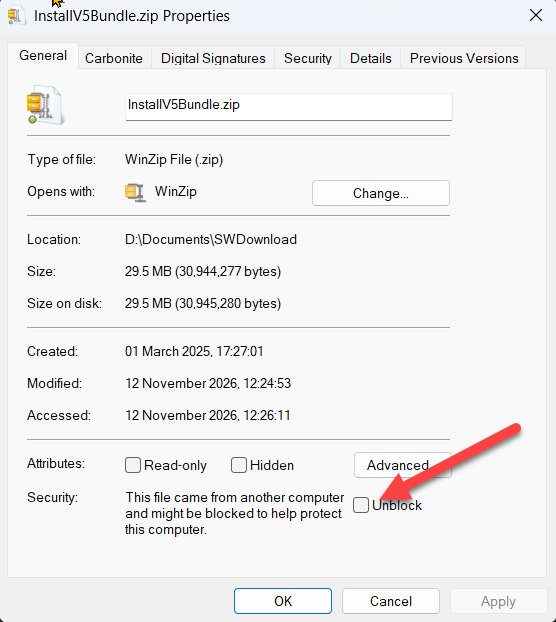
- Automatic Installers for Windows. You should Unblock (right-click and Unblock on the General tab) the file after download .
- Manual Installers for Windows
Automatic Installation for Windows
Automatic Installation requires administrative privileges.
You should Unblock the file after download (right-click the file, choose Properties and click Unblock on the General tab).
Double-click the downloaded installer .exe file and follow the instructions to
create a FastExcel V5 folder containing subfolders for each FastExcel V5 product. The default
directory is called FastExcel V5 and is located in your Program Files (x86)
directory.
Help files (.CHM) and a PDF version of the User guide will
also be installed in these folders.
After successful installation FastExcel V5 will automatically
be started when you start Excel, and you will find FastExcel V5
tabs for each installed product on the main ribbon.

If the ribbon does
not show any FastExcel V5 tabs, or the installation was done for you
by another user with administrative privileges, you may have to use the Manual Install instructions below:
Manual Installation for Windows
1. Download one of the Manual Installers
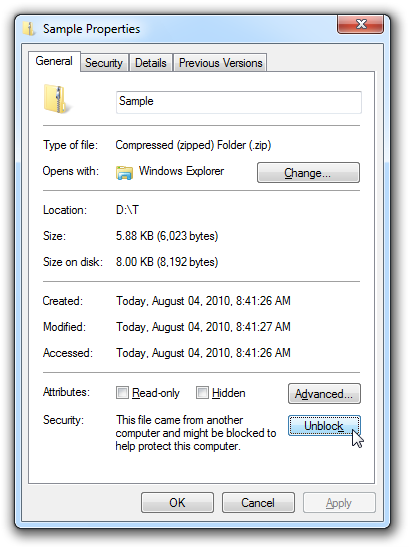
You should Unblock the file after download (right-click the file, choose Properties and click Unblock on the General tab).
Manual Installation does NOT require administrative privileges.
2. Create the FastExcelV5 folder
Extract the FastExcelV5 folder from the downloaded zip file to your chosen location
The FastExcelV5 folder contains up to 3 sub-folders, depending on which Manual Installer you chose:
- FastExcel V5 Profiler
- FastExcel V5 Manager Pro
- FastExcel V5 SpeedTools
Each of these sub-folders contains an .XLAM file you need to load into Excel using Excel's Addin Manager.
3. Unblock all the XLAM, XLL and DLL files
Windows often blocks downloaded files.
To unblock a file:
- The files you may need to unblock are:
- FastExcelV5/FastExcel V5 Profiler/FxlV5Profiler.xlam
- FastExcelV5/FastExcel V5 Profiler/QlmCLRHost_x64.dll
- FastExcelV5/FastExcel V5 Profiler/QlmCLRHost_x86.dll
- FastExcelV5/FastExcel V5 Profiler/QlmLicenseLib.dll
- FastExcelV5/FastExcel V5 Manager Pro/FxlMgrPro.xlam
- FastExcelV5/FastExcel V5 Manager/QlmCLRHost_x64.dll
- FastExcelV5/FastExcel V5 Manager/QlmCLRHost_x86.dll
- FastExcelV5/FastExcel V5 Manager/QlmLicenseLib.dll
- FastExcelV5/FastExcel V5 SpeedTools/FxlV5SpeedTools.xlam
- FastExcelV5/FastExcel V5 SpeedTools/FxlV5SpeedTools.xll
- FastExcelV5/FastExcel V5 SpeedTools/FxlV5SpeedTools64.xll
- FastExcelV5/FastExcel V5 SpeedTools/ExcelDNA.IntelliSense.xll
- FastExcelV5/FastExcel V5 SpeedTools/ExcelDNA.IntelliSense64.xll
- FastExcelV5/FastExcel V5 SpeedTools/QlmCLRHost_x64.dll
- FastExcelV5/FastExcel V5 SpeedTools/QlmCLRHost_x86.dll
- FastExcelV5/FastExcel V5 SpeedTools/QlmLicenseLib.dll
- Browse to each file, Select and Right-click it then select Properties
- Click the Unblock button
3. Make the FastExcelV5 folder a Trusted Location
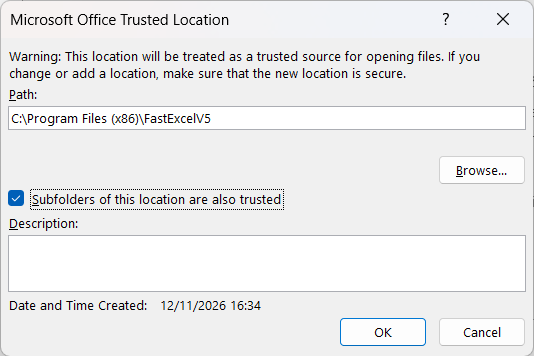
Start Excel and use File->Options->Trust Center->Trust Center Settings->Trusted Locations->Add new location->Browse to your FastExcelV5 folder->Check Subfolders of this Location are also trusted->OK
4. Use Excel's Addin Manager to install each FastExcel V5 addin
For Excel 2021 and Excel 365 Click File->Excel Options->Addins->Manage Excel
Addins->Go…
- Press Browse and locate
the FastExcelV5 folder.
- In the FastExcel V5 Profiler sub-folder select the FxlV5Profiler.xlam file and click OK to return to the Addins form.
- In the FastExcel V5 Manager Pro sub-folder select the fxlV5MgrProWin.xlam file and click OK to return to the Addins form.
- In the FastExcel V5 SpeedTools sub-folder select the fxlV5SpeedTools.xlam file and click OK to return to the Addins form.
- If asked “Do you
want to copy this Addin to the Addins folder?” reply NO.
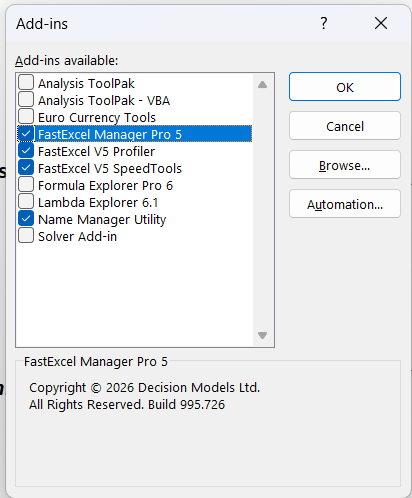
- The Excel Addins form
should now show the FastExcel V5 addins with a checkmark. Click OK to finish.
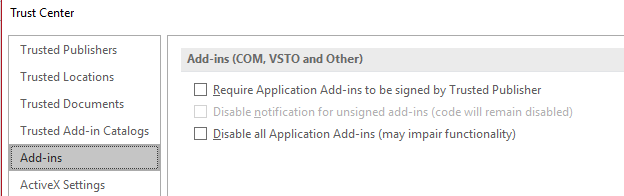
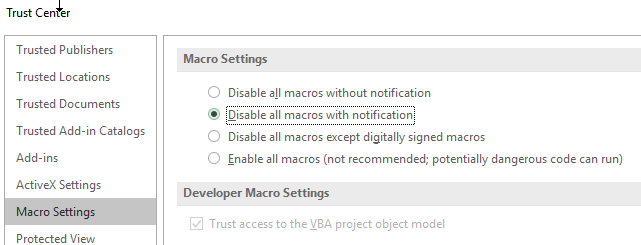
5. Recommended Trust Center Settings
The recommended settings for addins and macros are:
Uninstalling FastExcel V5
Moving a license or Renaming your PC
FastExcel licenses are tied to the name of your PC. You can move a license from one PC to another using Excel->FastExcel->Licenses->Remove. If possible you should remove/decativate the license before uninstalling FastExcel or changing the name of your PC.
To permanently
uninstall FastExcel V5 use one of these methods:
- Go to Windows Control Panel: Programs and Features, select FastExcel Bundle double-click and choose Uninstall
- Or Settings: Apps, select FastExcel Bundle click and choose Uninstall
- For detailed instructions on Windows Control Panel or Settings see
Uninstall programs in Windows 10
To temporarily uninstall FastExcel V5 use the Excel
Addins menu (location varies according to Excel version) to uncheck
the FastExcel V5 addin.
Managing your License Activations
You can manage your license activations using this webpage:https://quicklicensemanager.com/decisionmodels/QlmCustomerSite/
The webpage allows you to:
- Get information about the PCs your license is activated on.

- Activate and Deactivate a License remotely.

Trial Version and Activation
Request a 15-day Trial activation key for the FastExcel V5 Bundle here.
When you start Excel using the trial version FastExcel V5 will remind you how many days of trial you have left.
Click the License button on the FastExcel Tab to view or activate licenses, or to purchase a license.
Convert the trial version to a fully licensed version by entering a purchased permanent or subscription activation code for any of the 4 FastExcel V5 licensable products:
- FastExcel V5 Bundle
- FastExcel V5 Profiler
- FastExcel V5 Manager Pro
- FastExcel V5 SpeedTools
Any combination of trial and full licenses is allowed.
FastExcel V5 Licensing Settings
You can access the FastExcel V5 licensing settings from the License Management button on the FastExcel Tab.
License Management shows you the status of your licenses for FastExcel V5 products.
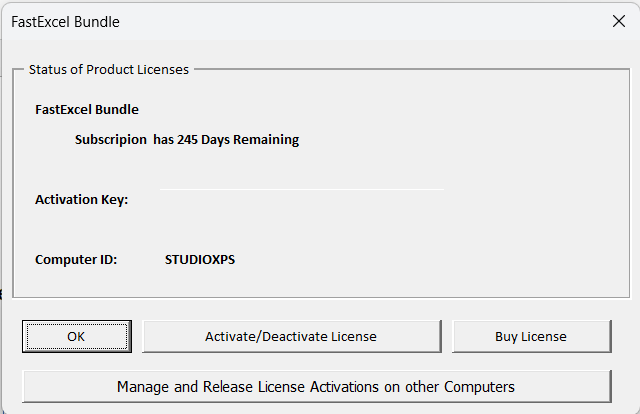
Activate/Deactivate License asks which product and license type you want to add/remove a license for:
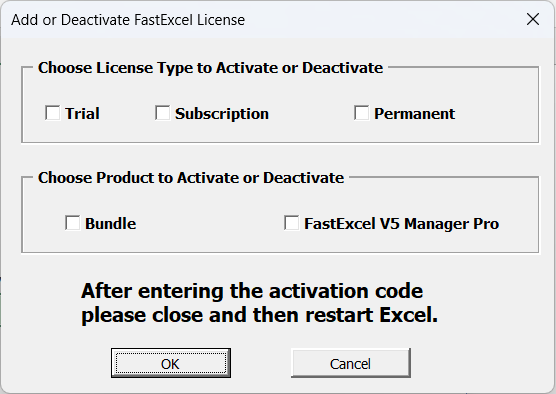 OK then launches the License Wizard.
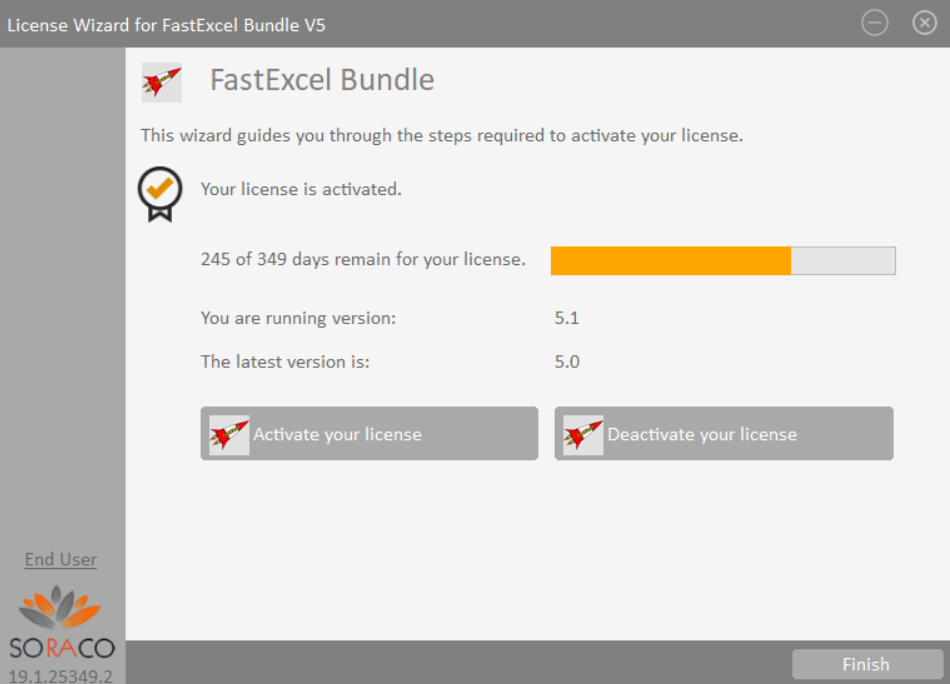
The License Wizard allows you to activate a new license or deactivate an existing one.
Note that Version 5.1 refers to a Subscription License and Version 5.0 refers to a Permanent License
|