 |
|
|
|
|
|
|
|
|
 |
|
|||||||
 |
 |
 |
|
|||||
 |
|
|||||||
 |
 |
|
||||||
 |
|
|||||||
 |
 |
 |
|
|||||
 |
|
|||||||
 |
 |
|
||||||
 |
|
|||||||
 |
|
|||||||
 |
|
|||||||
 |
 |
|
||||||
 |
|
|||||||
|
|
|
|
|
|
|
|
|
|
|
|||||||
|
|
|
|
|||||
|
|
|||||||
|
|
|
||||||
|
|
|||||||
|
|
|
|
|||||
|
|
|||||||
|
|
|
||||||
|
|
|||||||
|
|
|||||||
|
|
|||||||
|
|
|
||||||
|
|
|||||||
Installing Formula Explorer Pro 6 |

Installing (or Reinstalling) Formula Explorer Pro 6For Windows you can choose either an Automatic Installer or a Manual InstallerAll executable .exe files and the Excel Addin XLAM are digitally signed The Windows automatic installers are single-step installers that require Administrative level privileges. The manual installers for Windows or Mac do NOT require Administrative level privileges but require additional install steps. The downloadable Installers are:
Automatic Installation for Windows Automatic Installation requires administrative privileges. Extract the InstallExplorerPro6.exe file from the downloaded zip and unblock it. Double-click the downloaded installer .exe file and follow the instructions to create a folder containingthe Explorer 6 XLAM file and its associated files. The default directory is called Formula Explorer Pro and is located in your Program Files (x86) directory. A PDF version of the User guide will also be installed in these folders. After successful installation Explorer Pro will automatically be started when you start Excel, and you will find the Explorer Pro tab on the main ribbon. 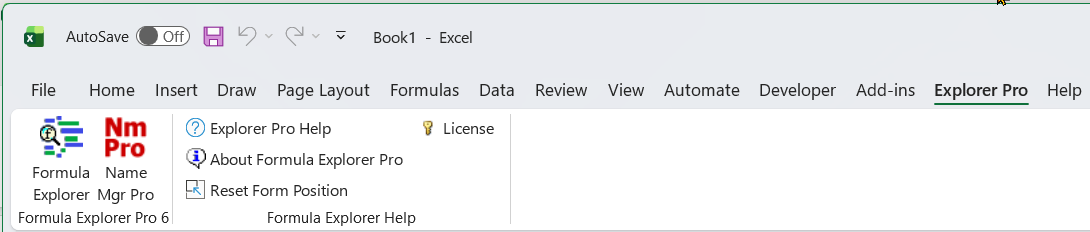
If the ribbon does not show the Explorer Pro tab, or the installation was done for you by another user with administrative privileges, you may have to use the Manual Install instructions below: Manual Installation for Windows1. Create the Formula Explorer Pro folder Extract and unblock the Formula Explorer Pro folder from the downloaded zip file to your chosen location The Formula Explorer Pro folder contains the fxlExplorerPro.xlam file you need to load into Excel using Excel's Addin Manager 2. Unblock all the XLAM, EXE and DLL files
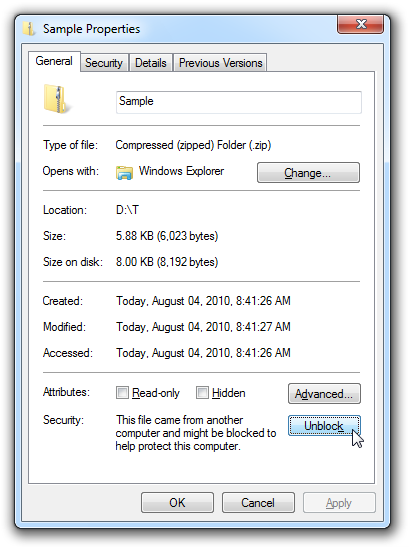
3. Make the Formula Explorer Pro folder a Trusted Location Start Excel and use File->Options->Trust Center->Trust Center Settings->Trusted Locations->Add new location->Browse to your Formula Explorer Pro folder->Check Subfolders of this Location are also trusted->OK 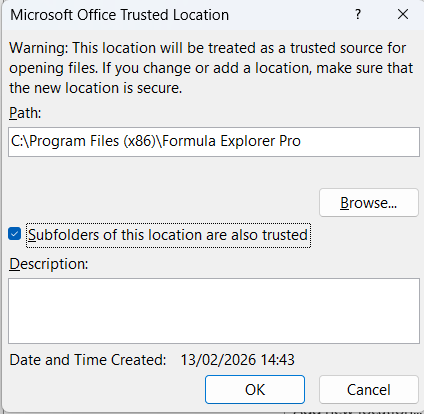
4. Use Excel's Addin Manager to install each the Formula Explorer Pro addin For Excel 2021 and Excel 365 Click File->Excel Options->Addins->Manage Excel Addins->Go…
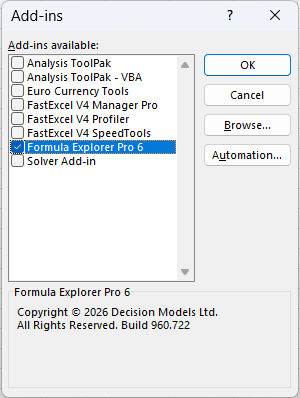
5. Recommended Trust Center Settings The recommended settings for addins and macros are: 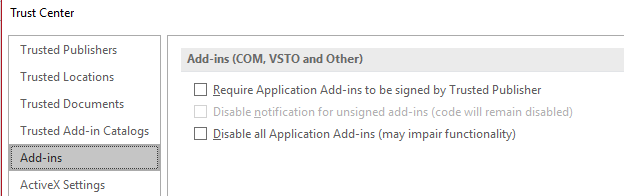 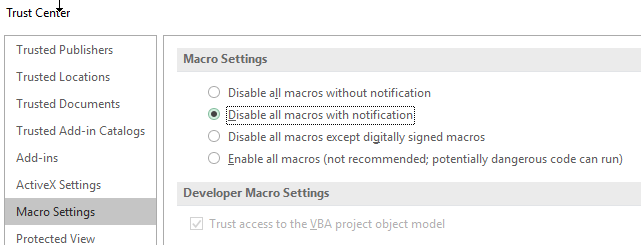
|
||||||||
|
||||||||
 |
||||||||